
Appearance
Ringing up a sale
▶ Watch — a quick walkthrough of ringing up a sale
This is the core POS flow, start to finish.
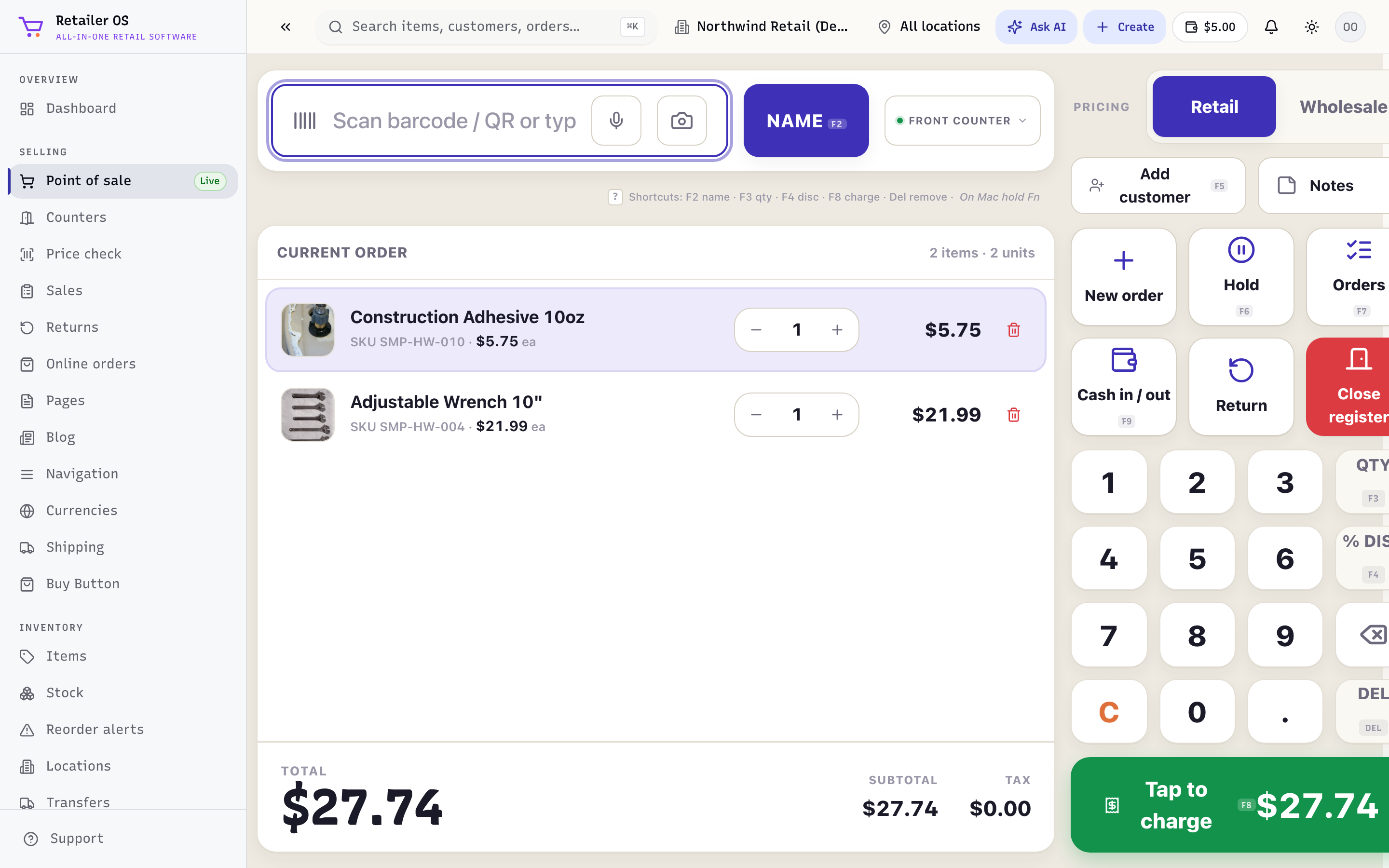
Build the cart
- Open Point of sale.
- Add items by scanning a barcode, or typing a name or SKU into the search box. Each scan of the same item bumps its quantity.
- Adjust a line's quantity or open it to change price or add a line discount (if your role allows price overrides).
Add a customer (optional)
Tap Add customer to attach the sale to someone. Adding a customer:
- Records the sale in their purchase history,
- Earns and lets them redeem loyalty,
- Lets them pay on account (store credit / receivables) if they have terms.
Wholesale customers
The customer list shows each customer's type: Retail or Wholesale. If it's Wholesale, the cart switches to their prices as soon as you add them, including items already in the cart:
- Wholesale pays each item's Wholesale Price.
- Items with no wholesale price ring up at retail.
To use another tier for this sale only, choose Retail or Wholesale under Pricing. A price you changed by hand on a line stays as you set it, and discounts still apply. These are the same prices the customer pays in your online store. Set them on the item in Items.
Apply a discount or promo
- Add a cart discount (percentage or amount) if your role permits it.
- Enter a coupon code or let an automatic promotion apply. See Promotions & Loyalty.
Take payment
- Tap Tap to charge (or press F8).
- Choose a tender — card, cash, gift card, store credit, or on account.
- Split tenders are supported: enter a partial amount on one tender and the remaining balance stays due, so a customer can pay part cash and part card.
- For cash, enter the amount tendered and POS shows the change due. If a cash drawer is connected, it opens when you tap Cash.
Finish
Once the balance reaches zero the sale completes and stock is drawn down. Hand over the receipt the way the customer prefers — print, email, or download a PDF.
Hold and recall an order
Need to help the next customer mid-sale? Tap Hold (F6) to set the order aside, then open Orders (F7) to bring it back. Held orders are per register.
TIP
Held orders are cleaned up automatically after a few days so the list stays meaningful — don't use Hold for long-term quotes. For those, use B2B quotes.