
Appearance
Items & variants
▶ Watch — a quick walkthrough of items & variants
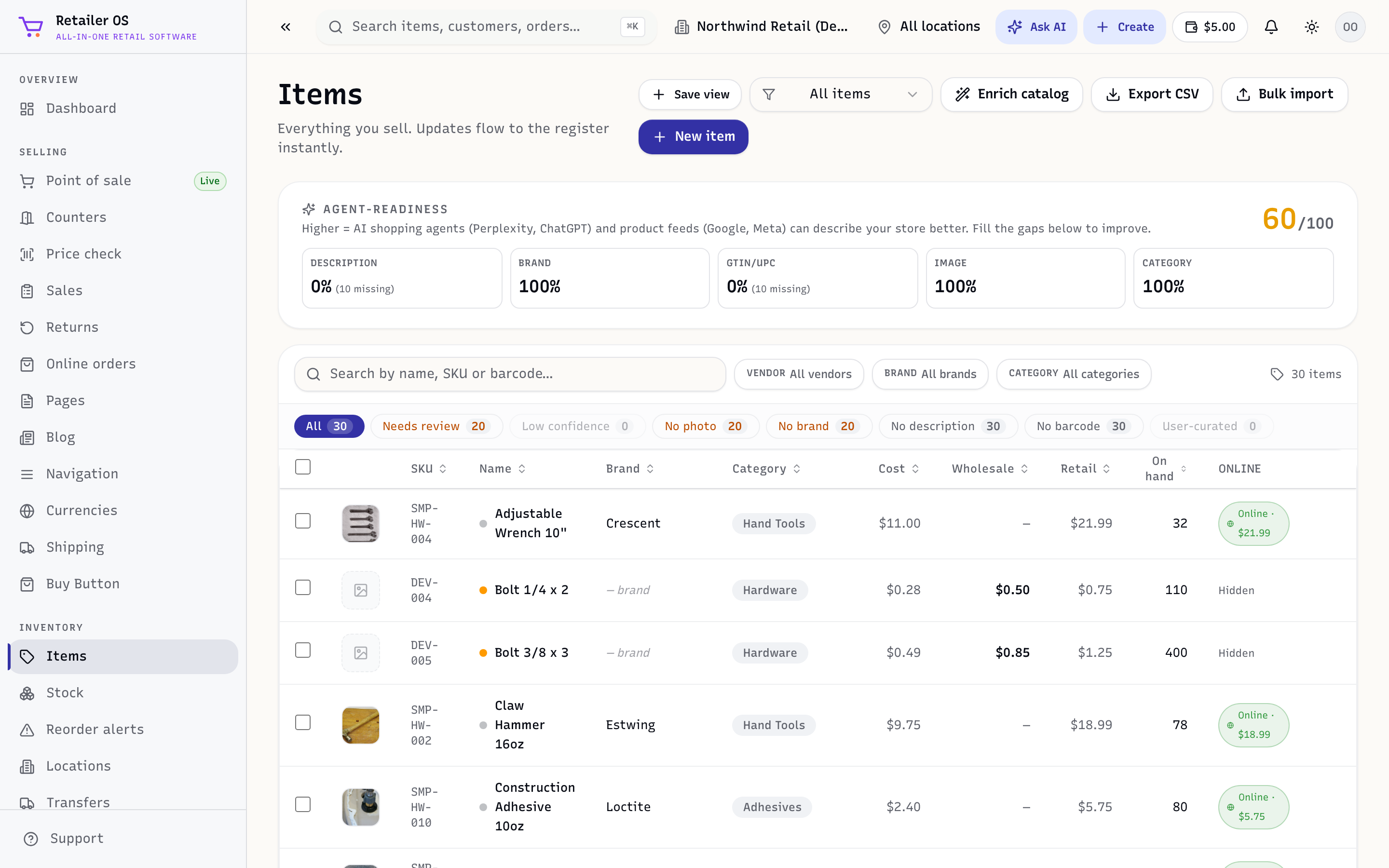
Items (/inventory/items) is your catalog — everything you sell. Open it from the Inventory group.
Add an item
- Open Inventory → Items and choose New item.
- Fill in the essentials — name, price, cost, and a SKU / barcode.
- Set starting stock per location.
- Add a photo, brand, and category so it looks good online and is easy to find.
- Save.
TIP
To load your whole catalog at once instead of one at a time, use Bulk import (or Setup → Import data) with a spreadsheet.
TIP
On a phone or tablet, Quick add adds an item from a few photos or a barcode scan, and From invoice adds everything on a supplier invoice at once. See Quick add & add from invoice.
Variants
An item can have variants — size, colour, or any option. Each variant carries its own SKU, price, and stock, so a "T-shirt" item can track "Small / Blue" separately from "Large / Red".
Sell online, in-store, or both
Each item has an online setting. Mark an item to sell online and it appears on your storefront and can be pushed to marketplaces; leave it off to keep it in-store only. You can set a separate online price and images.
Costs, price & margin
- Cost feeds inventory valuation and margin. When you receive stock at different costs, Retailer OS tracks a weighted average.
- Price is what you charge; margin is shown so you can price with confidence.
- Wholesale Price is what customers on Wholesale pay, at the register and in your online store. It shows its own margin.
- Wholesale customers pay retail for items that have no wholesale price. See Wholesale approvals.
Filters & views
The list filters by vendor, brand, and category, and by data-quality tabs (needs review, no photo, no brand, no barcode) so you can tidy the catalog. The Agent-readiness score shows how complete your listings are for AI shopping agents and product feeds (Google/Meta) — fill the gaps to improve it.